Six of these seven tricks are conveniences. The seventh stops a screenshot from showing what you thought you'd hidden, and it's the one from iReviews' tour I'd pass along first.
On the Home Screen
- Full-page widget stacks. The iOS 27 widgets that fill a whole page can be stacked, so one swipe swaps a calendar page for the forecast or a media player. The stack in the video holds four.
- Moving icons between pages. Hold the app with one finger and swipe pages with another, instead of parking it at the screen edge until the page turns.
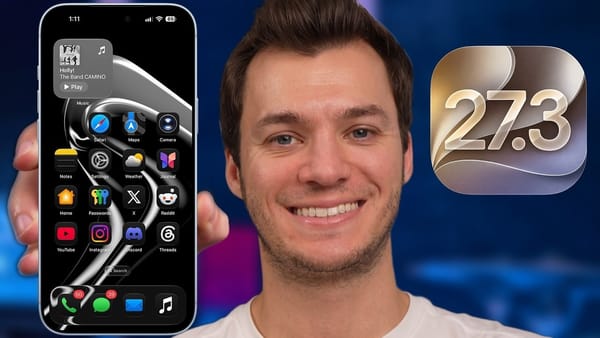
- An emoji in the status bar. Edit the wallpaper, open Markup from the three-dot menu, add a text box holding an emoji at size 22, and slide it up into the status bar strip. It's drawn into the image, and the video pitches it as a freer stand-in for the small set of Focus glyphs.
When you save or send something
- QR codes anywhere. Press and hold a QR code in a photo, on a web page or elsewhere in iOS to open the link in Safari, add it to Reading List, copy it, or share it.
- Web pages as PDFs. In Safari, Share and then Markup turns the page into a PDF you can draw on. Two fingers scroll while the tools are active, and Save to Files keeps the result.
- Message effects. Select typed text in Messages and tap Effects to animate it, and the person on the other end sees the animation too.
The redaction tip needs more room than a list item. iReviews warns that a detail scribbled over with a Markup drawing tool can come back with a quick brightness and contrast edit, so a screenshot that looks clean isn't. The fix sits in the same toolbar: tap the plus button, choose Add Shape, and drop a solid shape over whatever has to disappear. If you post chat or banking screenshots, that's the habit to change.
The emoji trick has a cost the video skips. It lives inside one wallpaper image, so switching wallpapers means drawing it in again.